Background
As part of the starting a new journey, I had to reconfigure my personal laptop. Everything had to start from scratch — from the ISO image, to system installation, to configuration, to being fully functional. It wasn’t as easy as it seemed.
Especially when I realized that, even for some of the most common tools, I had to learn and install from scratch (or maybe I just hadn’t paid enough attention before).
For non-native English speakers, a dictionary application is essential. Unfortunately, my favorite Immersive Translation doesn’t have a PC client.
I’ve been using Linux as my desktop system for over a decade. Perhaps out of habit, or maybe just a bit lazy, I still plan to do a fair amount of work on the Linux desktop. So I turned to the most well-known dictionary tool on Fedora: Goldendict.
Goldendict
Home page: http://goldendict.org/
Github page: https://github.com/goldendict/goldendict/tree/master
This is the old version. There’s now a new version called goldendict-ng.
Goldendict-ng
Github page: https://github.com/xiaoyifang/goldendict-ng
Installation
We’re using F43, install the new ng version directly:
❯ sudo dnf install goldendict-ng
To install the old version:
❯ sudo dnf install goldendict
Launch
Launch by Command Line
Running goldendict-ng directly will throw Segmentation fault (core dumped). Use the following command to launch:
QT_QPA_PLATFORM=xcb goldendict-ng
Launch by Menu
❯ cp /usr/share/applications/io.github.xiaoyifang.goldendict_ng.desktop ~/.local/share/applications/

❯ vi ~/.local/share/applications/io.github.xiaoyifang.goldendict_ng.desktop
// Find the `Exec=` line and change it to:
Exec=env QT_QPA_PLATFORM=xcb goldendict-ng %u
Adding Dictionaries
A freshly installed GoldenDict-NG may be empty. You can enable Chinese-English translation in two ways:
Method A: Online Translation
If you’re connected to the internet, you can plug in Youdao, Baidu, or Google Translate directly.
Open GoldenDict-NG, click Edit -> Dictionaries (or press
F4).In the window that pops up, switch to the Websites tab.
Click Add on the right, then enter the following:
Name:
Youdao TranslateURL:
https://dict.youdao.com/search?q=%GDWORD%
Check Enabled, then click Apply at the bottom right.
Method B: Offline Dictionary Files
Linux users love offline dictionaries — instant lookup with extremely detailed explanations. It supports MDict format (.mdx and .mdd).
Download dictionaries: You can download dictionary files (.mdx) from the web.
Store dictionaries: Put the mdx files into
/home/yahoon/Dicts(You can create a customized dir). Drop the downloaded.mdxfiles (and.mddfiles for images/sounds if any) in there.Import dictionaries:
In GoldenDict, click Edit -> Dictionaries.
Under the first “Sources” tab, go to the Files tab and click Add on the right, then select the
Dictsfolder you just created.Check Recursive (so it scans subfolders).
Click Apply or Scan Now at the bottom right.
Clipboard Monitoring
Right-click the tray icon and select “Toggle clipboard monitoring”:
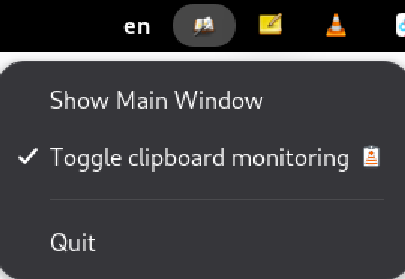
Now every time you copy text, the translation will pop up automatically.
💬 Welcome to leave your comments (GitHub account required)